igus® smart plastics
i.Cee
Security
Read this manual in its entirety before commissioning. Observe all safety and installation instructions; product-specific protective measures can be found in the respective chapters. If used in the entire system, this information must be passed on to the end user.
Warranty is only valid in accordance with the specifications specified in this manual and is limited to repair or replacement of the i.Cee. igus® assumes no liability for integration tasks, consequential damage, misuse or unauthorized modifications. We reserve the right to make changes to the product and the documentation.
The i.Cee may only be operated if:
- Installation and safety instructions are observed,
- the housing is mounted in accordance with ESD/EMC standards,
- no modifications have been made to the device and it is in perfect condition,
- the operating limits specified in the technical data are respected.
WARNING!
i.Cee.plus II is not a safety component within the meaning of the Machinery Directive and does not offer any protection against personal injury. Failure to do so can lead to serious property damage and personal injury.
Qualified personnel
The i.Cee may only be operated and maintained by qualified specialists.
-
The staff must have read and understood this manual and any additional documentation that may exist.
-
Personnel must be familiar with all relevant applicable standards, regulations and accident prevention regulations.
-
The staff must be able to foresee or recognize any hazards that may arise when using the system.
-
Personnel must be able to ensure the safety of people and objects when using the sensor unit in the overall system.
-
Personnel must be trained in the handling of ESD-sensitive equipment and take all necessary precautions.
The following information boards will appear a few times in the manual, they are classified so that the degree and type of hazard are marked.
DANGER!
Safety instructions marked DANGER indicate an imminent danger situation.
WARNING!
Safety instructions marked with WARNING indicate a possible dangerous situation. Failure to comply with the warning may lead to a serious or even fatal accident or property damage.
CAUTION!
Safety instructions marked with CAUTION indicate a possible dangerous situation. Failure to comply with the instructions may lead to an accident or property damage.
NOTE!
Safety instructions marked with NOTICE indicate a possible dangerous situation. Ignoring the information may lead to property damage. General instructions and explanations are also marked in this way.
Product Overview
Betriebsarten
| Operating mode |
Description |
|---|---|
| Online |
- Data comparison for predictive maintenance with those determined by igus® in the laboratory - Remote access to user interface - Connection to the Internet required |
| Offline |
- Previously stored information is used for predictive maintenance recommendations - Operates without connection to the Internet |
Technische Data
| Mechanical Specifications | |
|---|---|
| D x W x H in millimeters incl. plugs & fasteners |
110 x 31 x 125 mm |
| Weight in grams |
Approx. 120 g |
| Fastening/Mounting |
On TS35 Carrier Rail in Grounded Metal Control Cabinets |
| Colour |
black |
| Connectable conductor cross-section |
0.25... 1.5 mm2 |
CAUTION!
- Risk of destruction
: An operating voltage above the voltage specified in the specifications will destroy the i.Cee:plus II.
CAUTION!
The device is intended for installation in a grounded control cabinet. If this is disregarded, function and health may be endangered. The functional earthing device should definitely be connected.
| Electrical Specifications | |
|---|---|
| Power supply |
24 V DC |
| Rated current |
1 A |
| Maximum input on digital pins X2 |
3.3 V DC |
| Environmental conditions | ||
|---|---|---|
| Temperature range | Operation | -20… 40 °C |
| Storage | -40... 45 °C | |
| Transport | -40... 45°C | |
| Relative humidity | ≤ 90%, non-condensing | |
| Degree of protection | IP 30/ DIN EN 60529 |
WARNING!
- Risk of malfunction
- Fire hazard
- Risk of explosion
- Risk of electric shock
Do not operate i.Cee:plus II in water, humid environments or in aggressive, flammable or explosive atmospheres.
Installation
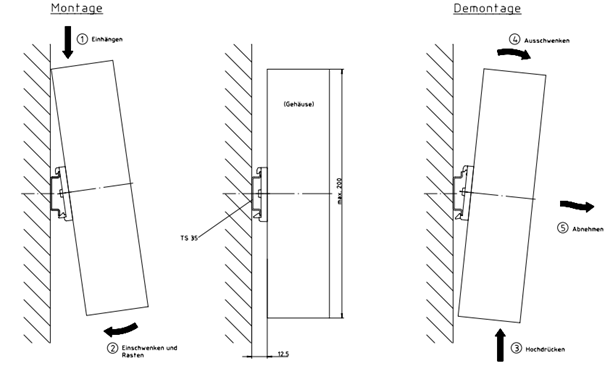
Mechanical installation
- Vertical, TS35 DIN rail
- Vibration-free installation location
- Connection space: 50mm vertical, 35mm
- Avoid heat build-up, provide sufficient ventilation
Elektrische Installation
WARNING!
- Risk of electric shock
- Risk of electric arcs
- Risk of injury
- Risk of component destruction
Always switch off the power supply before disconnecting or making electrical connections in the system. Secure the power supply against reconnection. After switching off, wait at least 5 minutes for the capacitors to discharge. Check that the voltage is free before working in the system. Arc flashes occur in electrical connections that are not installed properly. Cables connected to i.Cee:plus II must not have exposed and stripped wire ends. Also ensure that all connections are securely seated.
CAUTION!
The connection terminals are only designed for single wires.
Due to improper multiple assignments, a fixed connection cannot be guaranteed. There is a risk that wires can slip out of the connection terminals and thus cause short
circuits. If several signals/wires have to be connected to a connection terminal, they must be merged via an external terminal and connected from there with a single wire.
Auswahl of Power Supply
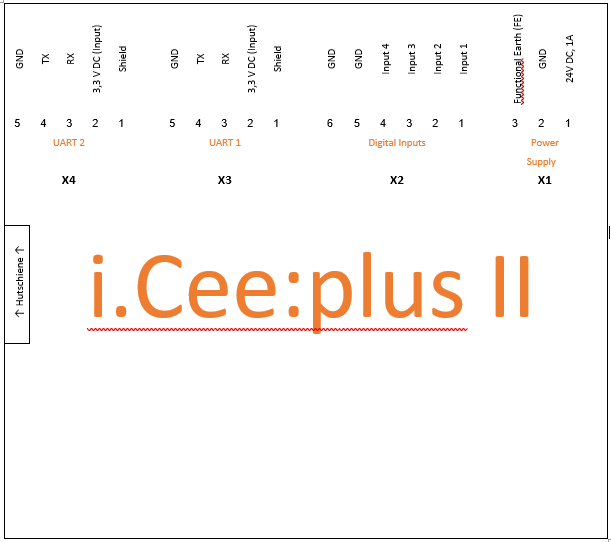
Information on the correct dimensioning of the voltage source can be found in the technical data. To connect these, use the pins to X1. A Zeichnung where these can be found can be found under 4.2.2 (p.9).
| Clamp |
Designation |
|---|---|
| X1 – 3 |
PE |
| X1 – 2 |
GND |
| X1 – 1 |
+24V |
CAUTION!
Do not turn on the power supply until all other components have been connected. If this is not observed, there is a possibility of electric shock or malfunction of the connected component.
Steckerbelegung and sensor connection
The plug connections run according to the scheme as described below:
| Plug Assignment and Sensor Connection | |
|---|---|
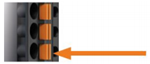
| 1. Press the orange spring of the respective wire opening into the plug with your hand or pliers and hold it there. |
 |
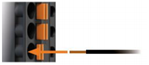
| 2. Push the stripped wire about 9mm deep into the opening. |
 |
| 3. Press the orange spring of the respective wire opening into the plug with your hand or pliers and hold it there. |
 |
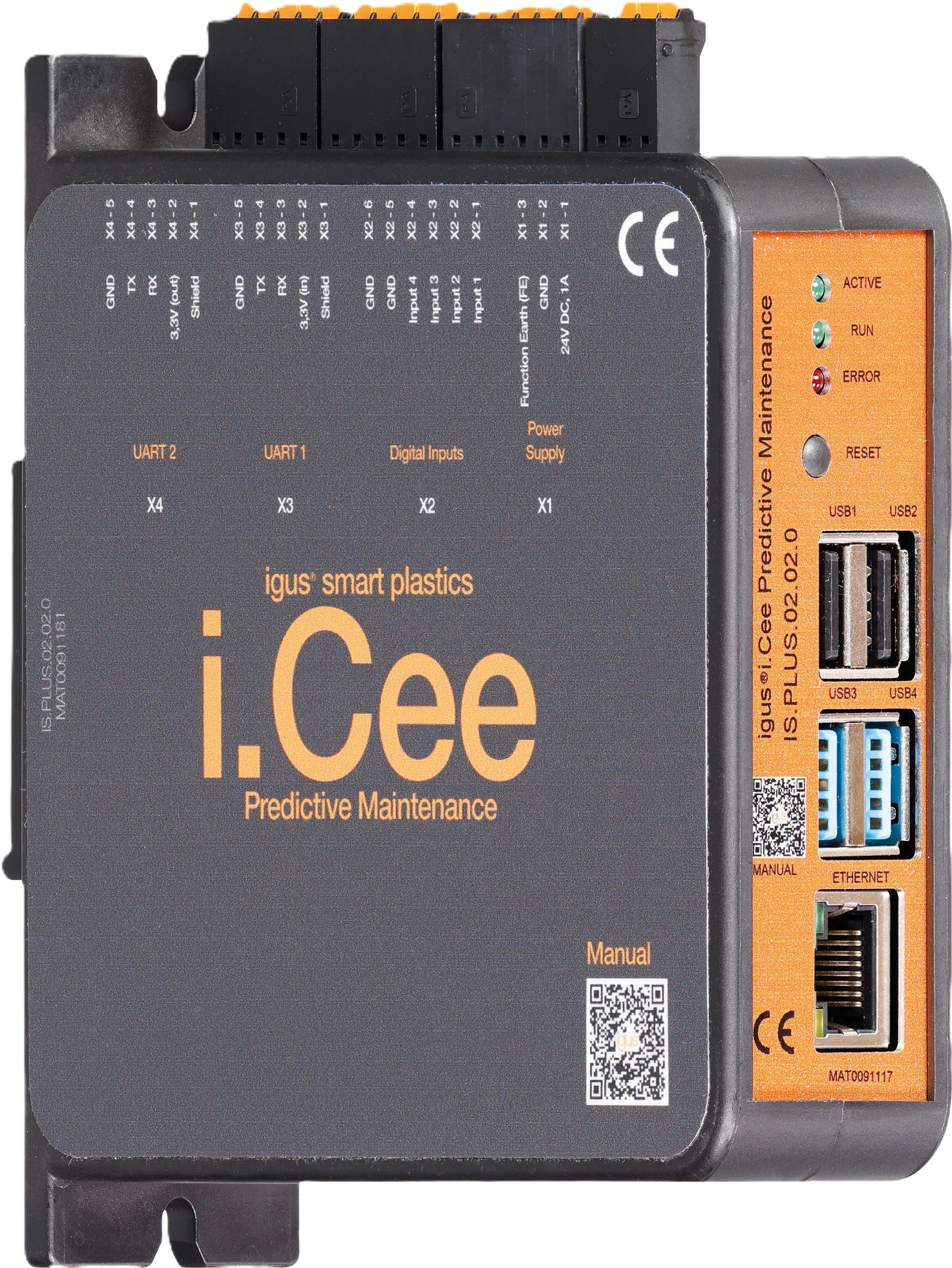
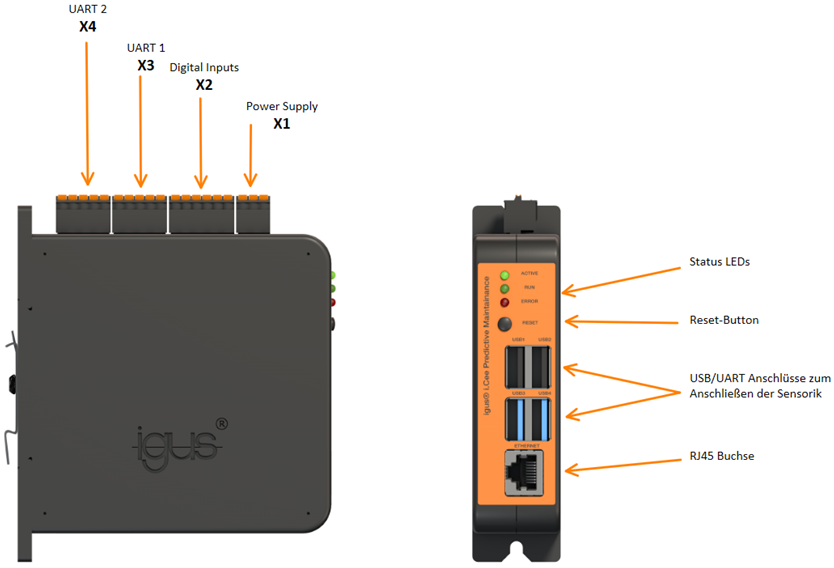
Housing with labeling of the connectors
Connection diagram of the module
Connection of the sensors
Sensors are connected to i.Cee:plus II in four ways:
1) By UART/USB
2) Through i.Sense or i.Sense:modul II, connection to i.Cee:plus II via USB.
3) Free use of X2 digital inputs, such as plain bearings, abrasion sensors, is also possible.
4) By wireless technology (W-LAN, LoRa, Bluetooth, etc.)
Caution
Failure to observe the maximum input values on the digital inputs can lead to malfunctions and the destruction of i.Cee:plus II. This can result in personal injury.
NOTE!
When connecting a conductor loop to digital inputs X2, input active if conductor loop is interrupted.
Kommunikationsschnittstellen
Connection of the UART interfaces
Connection of the UART interfaces to X3 and X4
| Clamp |
Designation |
Color |
|---|---|---|
| X3/X4 – 5 |
GND |
black |
| X3/X4 – 4 |
TX |
Yellow |
| X3/X4 – 3 |
RX |
Orange |
| X3/X4 – 2 |
3.3V |
Red |
| X3/X4 – 1 |
Shade |
Metal mesh |
CAUTION!
Be sure to connect the shield of the cables. Otherwise, function and health may be at risk.
Sensors
Anschluss Wear sensors EC. W /EC.IT & roller chain link, as well as plain bearing wear sensors
LoRa recipient
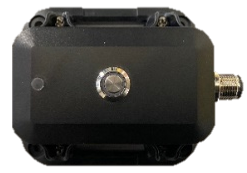
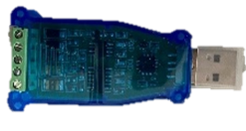
Receiver module (upper image) for igus® sensor signals sent via LoRa radio technology Connection: RS485-> USB converter (bottom picture) on USB inputs of the i.Cee:plus II Description of the connection in manual to the IS. LORA.22.18.0.BETA
EC.IT - Monitoring of bolt/bore wear of an igus® e-chain®
-005da20d-1149-45a3-bb76-26f18391a660.jpg)
Quality monitoring of bolts and bore of an igus® e-chain® by means of a replica chain link used as a separator in e-chain® for the E2 to E4/P4 series with a maximum inner height of 112mm Connection: Via LoRa receiver under 5.1.1
EC. W – Wear monitoring for igus® e-chain®
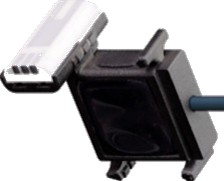
Quality monitoring on the inside of an igus® e-chain® with intelligent separator in e-chain® for the E2 to E4 series with a maximum internal height of 112mm Connection: Wired via UART
Zustandsüberwachung to drylin® linear guides
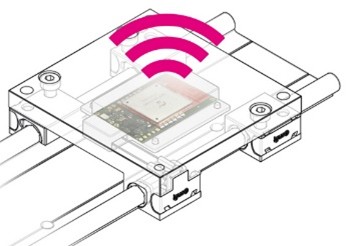
Wear detection for linear guides from igus® Connection: Via LoRa receiver under 5.1.1
ComBox
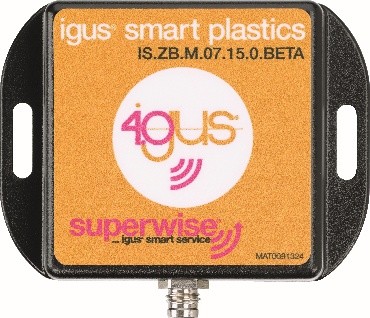
Mobile modem for sending error messages Connection: - UART terminals on i.Cee:plus II - Four-wire, M8 screw connectors
Anschluss other sensors i.Sense:modul II
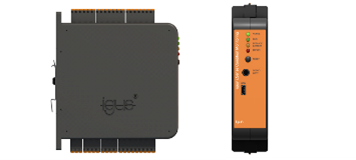
Microprocessor-based DIN rail module for continuous evaluation of connected i.Sense sensors and part of the igus® smart plastics condition monitoring concept Special features: i.Sense:modul II has its own user interface, accessible via the IP address or https address of i.Cee:plus II followed by "/isense/"
Connection: Micro-USB-> USB-A cable to USB inputs of the i.Cee:plus II User Interface Accessible by adding "/isense/" to the browser address
Commissioning and user interface
Commissioning, Admin Menu and User Interface
Admin Menu
Admin Menu Information
The admin menu can be accessed via the domain followed by "/nodered/ui/" of the iCee. This is either the static or DHCP-obtained IP address or a web address of the form:
http://[Kundenname]_[Nummerierung(01-99)].igus-smart.net/nodered/ui/
Overview of the admin menu
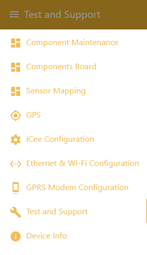
Menu
hamburger icon to switch between the individual submenus of the admin menu. The currently selected submenu is symbolized by a vertical bar on the right.
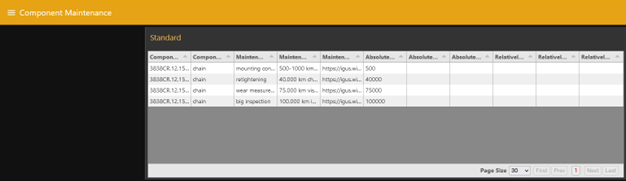
Component Maintenance
Display of possible maintenance messages. Absolute intervals can be changed by clicking on the respective cell.
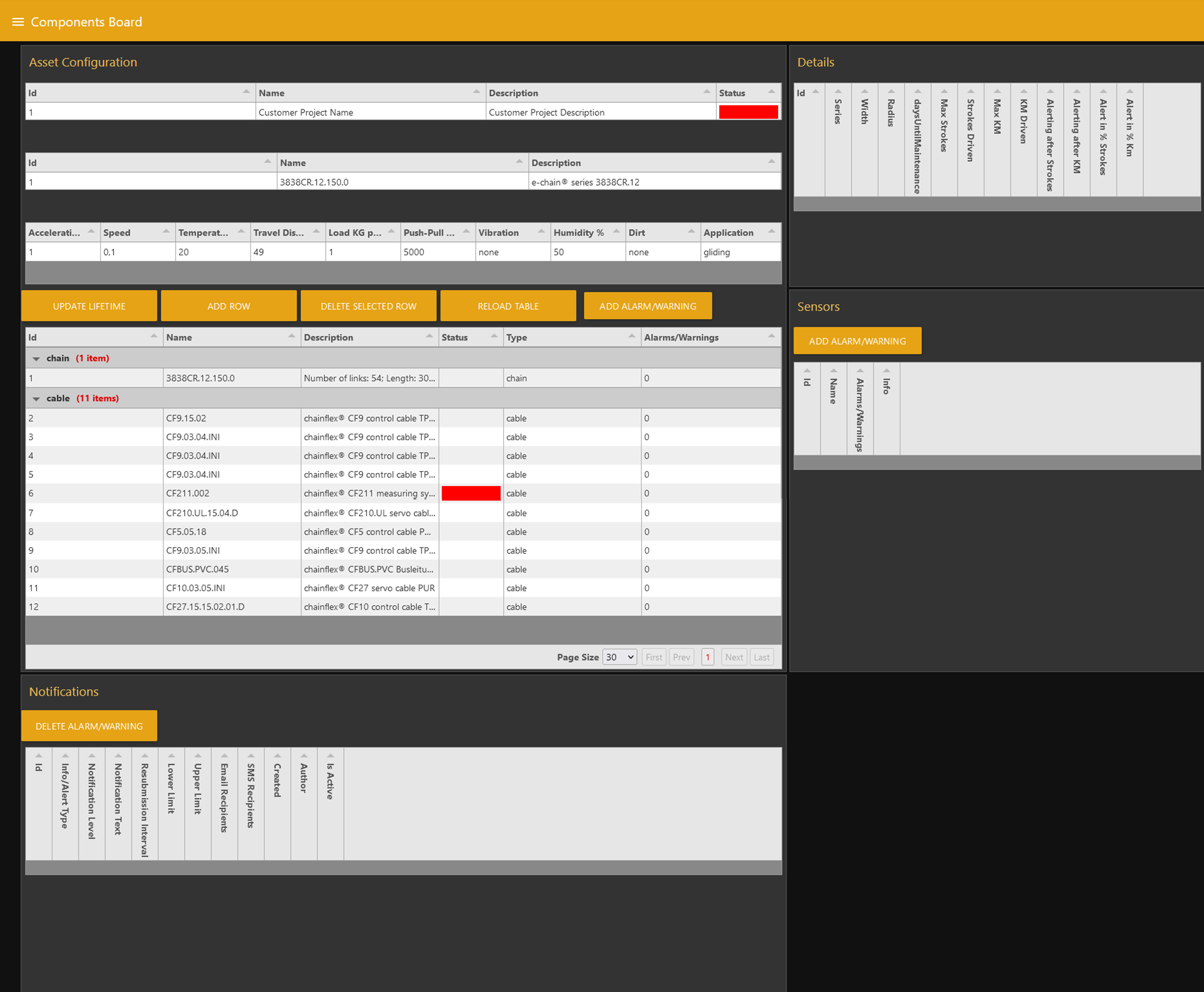
Components Board
Overview and editing of the connected components of the e-chain®.
- Relevant for the first setup.
- Lifetime is calculated based on the data listed here.
- Name the i.Cee:plus II module in the upper area by filling in the Name and Description text fields.
NOTE!
When a conductor loop is connected to digital inputs X2, the input is active if the conductor loop is interrupted.
Add components
- Click the "ADD ROW" button.

If a row of the table is created incorrectly, it can be deleted by selecting and pressing the "DELETE SELECTED ROW" button.
- Store the corresponding ID in text fields.
Data required at e-chain®
- Name of the e-chain® / line
- Number of chain elements
- Length without connecting element
- Length with connecting element
- Installation type (sliding or rolling)
- Radius
- Width
Required data for line
- Name of the line
- Cable series
- Outer diameter
- Arrangement of the wires within the line
- Radius

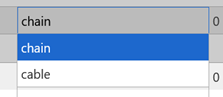
To assign a category, set the drop-down menu to chain or cable
Name contains the name of the component.
Description is a text that is structured as follows:
E-chain®:
[Anzahl Kettenglieder]; [Kettenlänge ohne Anschlusselement]; [Kettenlänge mit Anschlusselement]; [Installationsart]
Example:
Number of links: 54; Length: 3024mm; Chain length including mounting brackets: 3170mm; Installation type: Gliding
Management:
[Hersteller] [Leitungsserie]; [Außendurchmesser der Leitung]; [Anordnung der Adern]
Example:
chainflex® CF9 control cable TPE; Cable diameter: 6.5mm; Number of cores and nominal conductor cross-section: 2x1,5
- Store data on the e-chain® system.

!!! info "NOTE!"
If several e-chains® are connected to i.Cee:plus II, it is necessary to assign a separate Configuration ID to each chain.
This can only be set via the database – please contact customer service (p. 26).
- Acceleration, Speed, Ambient temperature, Travel distance, Weight per meter, Maximum pull/thrust and Moisture are text fields in which integers are entered.
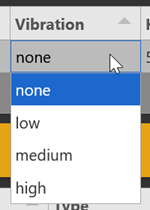
- Vibration and Pollution are drop-down menus (four modes each).
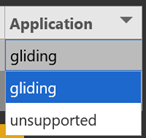
- Application is also a drop-down menu (two choices).
- Lifetime data
!!! info "NOTE!" To calculate the service life, width and radius must be added for e-chains® and radius under Details for cables.
When selecting a row in the table in which an e-chain® or a line is located, lifetimes are stored under the Details tab. These are automatically filled by clicking the Update Lifetime button.
!!! info "NOTE!" In order to obtain the service life automatically, the module must have an Internet connection.
Automatic lifetime retrieval: The Series, Width and Radius fields must be filled in independently and are necessary to calculate the service life (fillable text fields).
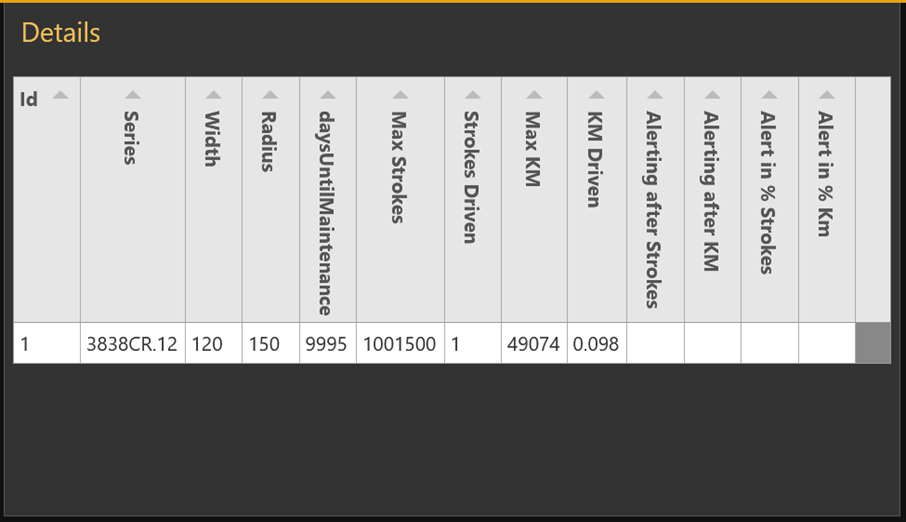
Automatic lifetime
- Set the previous km and cycles under Sensor Mapping.
To do this, click on the hamburger icon to open the submenu Sensor Mapping and fill in the fields under Total Strokes accordingly.
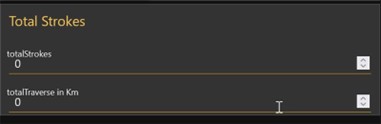
- Press the Update Lifetime button.
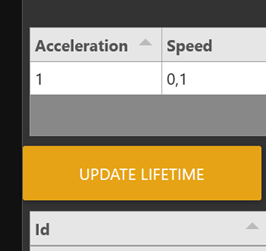
- Lifetime is added to each component.
Sensor Mapping
Adding and removing sensors, editing the double strokes and kilometers possible.
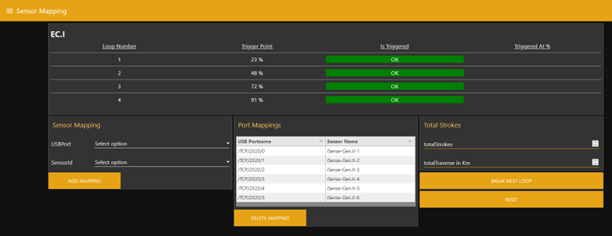
Adding Sensors
NOTE!
If there is no output under Test and Support, the sensor is not connected, no message is currently being sent, or the baud rate needs to be adjusted.
Please contact our customer service (p. 26).
- View the incoming signals under Test and Support.
- Select the appropriate USB port under Sensor Mapping.
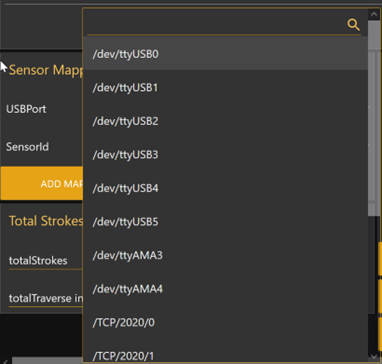
- Select the appropriate sensor under SensorId.
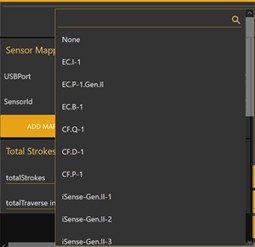
- Click the ADD MAPPING button.
Set ##### cycles and kilometers driven
- Enter cycles and kilometers in the fields provided.
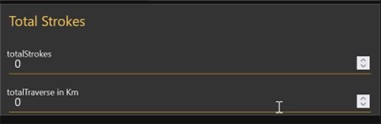
- Focus on another area of the page.
- Data has been transferred.
GPS
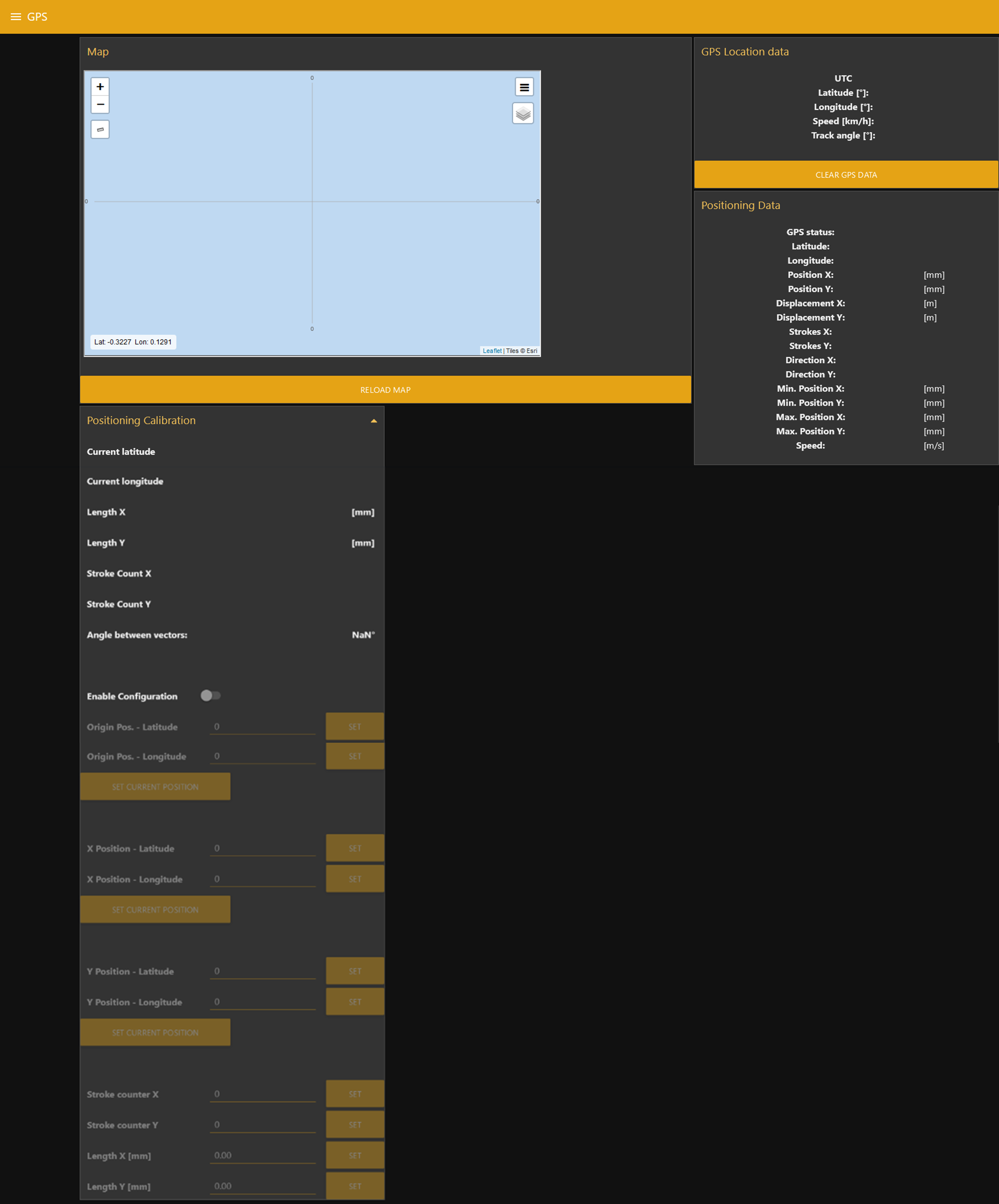
Adding a GPS sensor by activating the configuration. A GPS signal is then visible, the position of which is displayed on the map in the upper left. The data from the GPS sensor is displayed here.
iCee Configuration
NOTE!
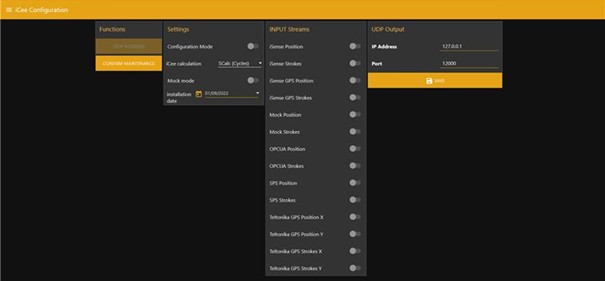
Only one basis may be selected for the service life calculation.
If several bases for service life determination are selected, it cannot be guaranteed that the determination will work meaningfully.
Configuration of the service life calculation. Here you can specify on the basis of which position or cycle counter data the service life is calculated in the i.Cee:plus module.
NOTE!
When you press the stop nodered button, the admin menu is no longer accessible. After restarting the system, it can be reached again.
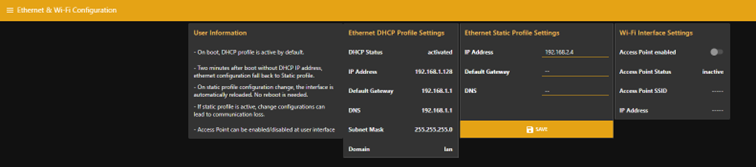
Ethernet & Wi-Fi Configuration
Overview of network status, display the IP of the device and change it. Manual assignment of the IP address is only possible if no DHCP server is connected.
Switching on and off the WLAN network spanned by the i.Cee:plus II module by pressing the slider, applying the settings with the SAVE button.
NOTE!
Manual assignment of a static IP address is only possible if there is no DHCP server in the network.
NOTE!
Standard access data for i.Cee access point:
SSID: iCee_AP
PW: (empty)
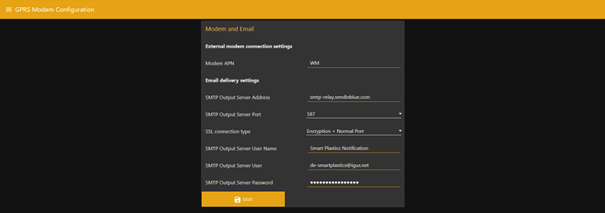
GPRS Modem Configuration
When connecting the GPS/SMS module, the operator's APN is entered here, depending on the operator. In igus®' standard version, this is: wsim.
A separate SMTP server can be stored; for this purpose, the fields must be filled in accordingly. If no own SMTP server is used, the settings are retained.
The settings can be applied by clicking the SAVE button.
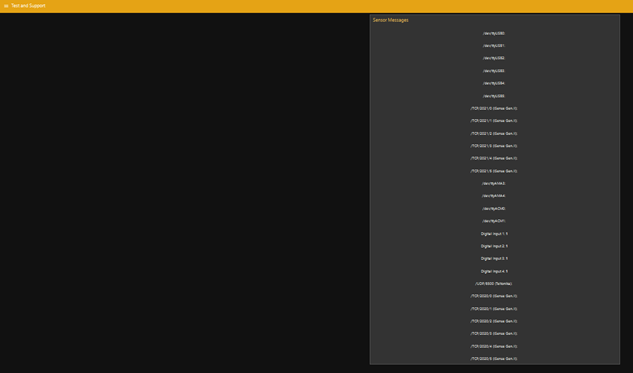
Testing and Support
The individual sensor messages on the respective connection are continuously displayed at this point. At the time of receipt of the sensor message on the i.Cee:plus II module, it is displayed next to the connection.
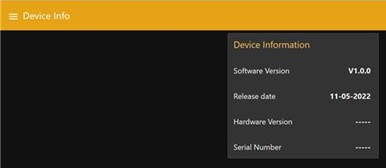
Device Info
Versioning information is stored during setup; these can be found at this point during operation.
Loss of connection
- Try reloading the page (refresh button of the browser).
- If it fails, please restart the device.
- If this attempt also fails, please contact the Kundenservice (S.26).
Frontend
Frontend Information
The dashboard can be accessed via the domain of the iCee:plus II. This is either the static IP address or the IP address obtained via DHCP or a web address of the form:
http://[Kundenname]_[Nummerierung(01-99)].igus-smart.net
In the frontend, colors are used to indicate how acute events are. These are explained in the following table:
| Color | Meaning |
|---|---|
| GREEN | Everything in order / no need for action |
| YELLOW | In the near future, action will be necessary, so plan for this. |
| RED | Error / action is needed, contact the Kundenservice (S.26) |
Overview of the frontend
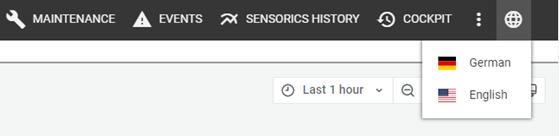
Language
- Language of the frontend can be changed (mouse click on the globe icon in the upper right corner).
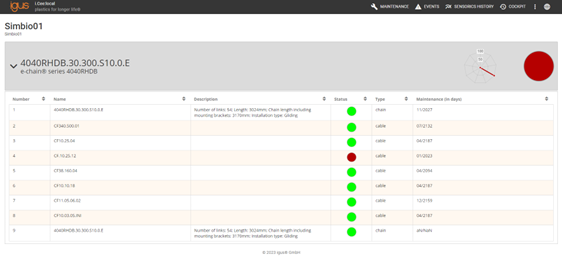
Maintenance
- Maintenance recommendations for the igus® components are listed.
- Gray bar symbolizes the group of components. This can be displayed expanded or collapsed (arrow on the left).
- Collapsed state: gray bar incl. general maintenance recommendation of the group (circle on the right) and spider web diagram in which all components are included.
- Unfolded state: all components of the group are visible (numbered and labeled), maintenance recommendations under Status.
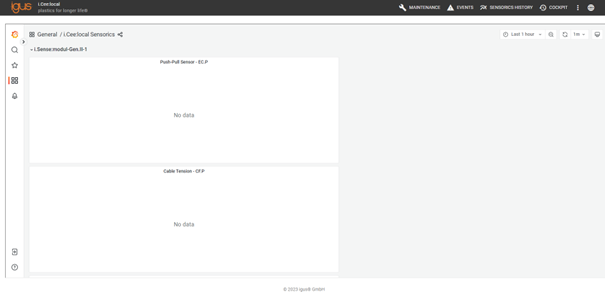
Sensorics History
NOTE!
To change the interface, please contact customer service (p. 26).
- Temporal progression of the sensor data; each sensor can have its own graph.
- By pressing the left mouse button, a range of graphs can be selected.
- Connection of i.Sense:modul II: Sensors displayed as a group with dropdown.
Below the main menu in the upper right corner there are settings for the view (from left to right):
- Setting the displayed time interval
- Zoom out: enlarges the displayed time period
- Refresh: the circle of arrows refreshes the page immediately
- Setting the update interval
- Change view: switches between the displayed view and a view without a frame
Cockpit
Overview of events and maintenance information. Below the main menu in the upper right corner there are settings for the view (from left to right):
- Setting the displayed time interval
- Zoom out: enlarges the period under consideration
- Refresh: the circle of arrows refreshes the page immediately
- Setting the update interval
- Change view: switches between the displayed view and a view without a frame
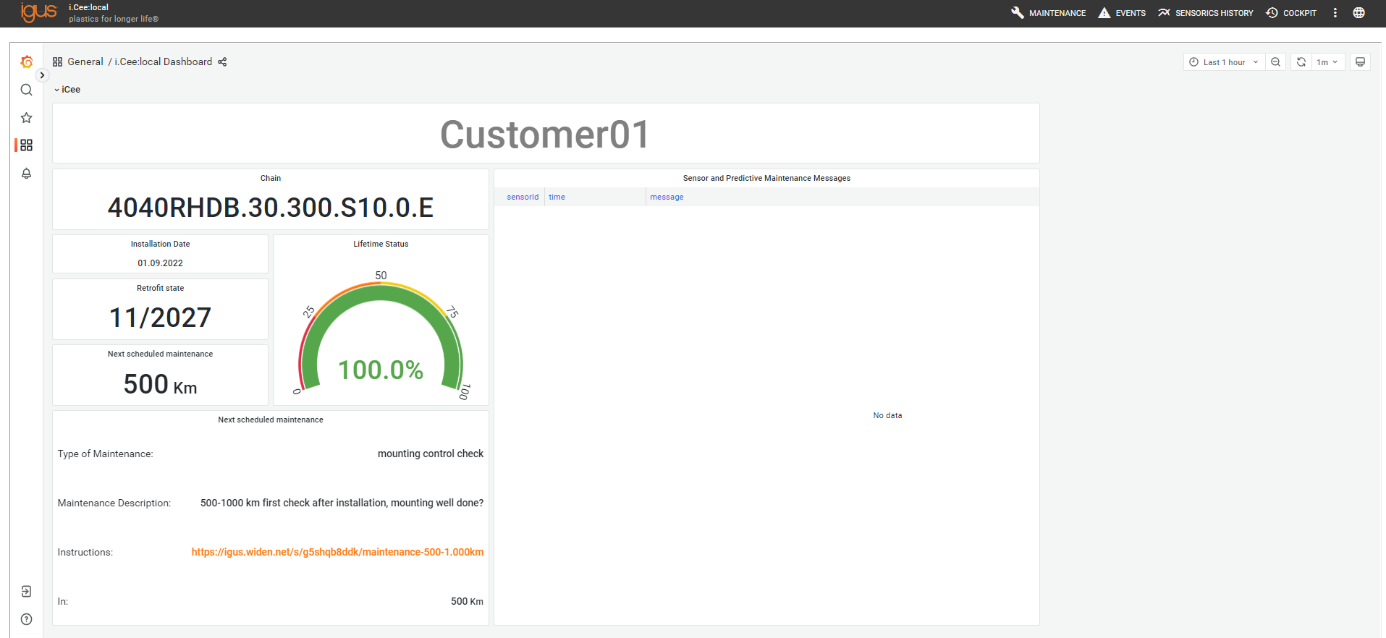
Cockpit Fields (Examples):
- Name of the machine
- Errors/alarms
- Considered e-chain®
- Module installation date
- Recommended date for a chain replacement
- Lifetime status
- Description of the next maintenance
- Distance to be driven until the next maintenance
Events
List of events and error messages can be viewed. Delete them by clicking on the orange button at the top right.
Customize the appearance of the frontend
In general, it is possible to customize the frontend; please contact customer service (p. 26).
Connection to Siemens PLC
- Connect the PLC to i.Cee:plus II via TCP-IP via RJ45.
- Loading of the data module into the control system via TIA portal.
-
Data module:
https://igus.widen.net/s/zqd7ktc28r/sma_datablock_icee_s7 - The following information is then required: - IP address of the PLC - Number of the data module within the PLC ## Maintenance -------------------------- Maintenance i.Cee:plus II is maintenance-free. Apart from the connectors, the i.Cee:plus II does not contain any components that can be replaced by the user. If hardware problems occur, please contact the Kundenservice (S.26). ## Troubleshooting - Unable to connect to the user interface o Try again o Restart devices and then try again o If that doesn't help, contact the Kundenservice (S.26)
 -
The device does not collect all sensor data, what now? o Check all connectors and restart the system. o If that doesn't help, contact the Kundenservice (S.26) ## FAQS - What are the LEDs for? o At the moment they have no function. - How are the sensor limits set?
o It is advisable to use a programmer. o The individual steps can be found under the item Description of the backend interface. - How do I retrieve the determined sensor data? o Under the item User interface, the individual steps for operating the user interface are listed. ## Abbreviation | Abbreviation
| Description
| |
| --- | --- |
| EMC
| Electromagnetic Compatibility
|
| ESD
| Electrostatic discharge
|
| PLC / PLC
| Programmable Logic Controller
|
Explanation of terms
| Term |
Description |
|---|---|
| Functional earthing |
Functional earthing is important for the trouble-free functioning of electrical systems and devices |
| DIN Rail |
TS35 Carrier Rail for Installing Modules in a Control Cabinet |
| Double strokes |
Variable that counts the number of distances traveled back and forth |
Regulatory & Legal
Compliance with EU Directives The CE marking on the i.Cee confirms conformity with the following European directives:
| Policy | Description |
|---|---|
| 2014/30/EU Electromagnetic compatibility (EMC) | Directive of the European Parliament and of the Council on the harmonisation of the laws of the Member States relating to electromagnetic compatibility |
| 2014/53/EU | Directive of the European Parliament and of the Council on the harmonisation of the laws of the Member States relating to the making available on the market of radio equipment and repealing Directive 1999/5/EC |
| 2011/65/EU RoHS | Directive of the European Parliament and of the Council on the restriction of the use of certain hazardous substances in electrical and electronic equipment |
The applicable directives are listed in the EU declaration of conformity of the respective device.
Cyber Resilience Act (CRA) Notice The i.Cee contains digital components. The security requirements of the EU Cyber Resilience Act (Regulation (EU) 2024/2847) apply to such products. The CRA stipulates that software and networked devices must be operated securely and kept up-to-date throughout their entire life cycle.
To ensure that you can use the i.Cee reliably and safely, please note:
- Install deployed firmware and software updates regularly.
- Use secure network and access settings.
- Change default passwords immediately after commissioning.
- Disable unnecessary interfaces or services.
If you notice a technical anomaly or a possible security vulnerability, please report it via the official igus support channel or via the service portal. The CRA also requires users to have access to information about security support, known risks, and update processes. For more details, please refer to the documentation of this product or contact your national market surveillance authority.
Note on the EU Dual-Use Regulation (EU) 2021/821 Individual electronic components and sensors in the i.Cee may fall under the EU Dual-Use Regulation (EU) 2021/821, depending on the technical design. This ordinance regulates goods that can be used in both the civilian and military sectors.
A permit may therefore be required for export to countries outside the EU. Whether this applies depends on the target market, the application and the respective technical configuration.
Please check before passing on or exporting the product:
- whether there are export restrictions for your destination country,
- whether your application is considered security-critical or military-grade,
- whether a permit is required under applicable regulations.
For more information, please contact your national export control authority (e.g. BAFA in Germany) or consult the official EU documents.
Electromagnetic compatibility
WARNING!
- Risk of injury due to interference with signals and equipment Disturbed signals can cause unforeseen device actions. Perform wiring in accordance with EMC measures. Failure to follow these precautions may result in death, serious injury, or material damage.
| Measures on EMC |
Impacts |
|
|---|---|---|
| Device assembly |
Use cable clamps for shield support, connect metallic parts over a large area |
Good conductivity due to flat contact |
| Supplement switchgear such as contactors, relays or solenoid valves with interference suppression combination or spark extinguishing elements (e.g. diodes, varistors, RC links). |
Reduce mutual interference coupling. |
|
| Wiring |
Keep cables/connections as short as possible |
Avoid capacitive and inductive interference |
| Do not lay sensor cables and signal cables together with cables for DC and AC voltage above 60 V in a cable duct. |
Avoiding mutual interference coupling |
|
| Ground shields of digital signal cables on both sides over a large area or via conductive connector housings. |
Avoid interference with control cables, reduce emissions. |
Service
Customer Service
de-smartplastics-service@igus.net
+49 (0) 2203 9649 9806
Technical support for igus® smart plastics
Documentation/FW
https://www.igus.de/info/i-sense-modul-2
Download manuals, FW updates and certificates
Smart Plastics website
https://www.igus.de/info/vorausschauende-wartung-smart-plastics
Possibility to order sensors, processing units and other accessories
Contact
+49 2203 9649-9507
Imprint
© 2026
All rights reserved.
igus® SE & Co. KG
Spicher Str. 1a
51147 Cologne